Efficient Training for Financial Journal Entry Security Access
This training session covers essential topics such as accessing and creating journal entries, attaching documents, approval processes, and ensuring data accuracy. It also includes detailed instructions on requesting security access for journal entry and Xtender documentation viewing. Understanding journal entry basics and the importance of proper record-keeping in accounting are emphasized.

Download Presentation

Please find below an Image/Link to download the presentation.
The content on the website is provided AS IS for your information and personal use only. It may not be sold, licensed, or shared on other websites without obtaining consent from the author. If you encounter any issues during the download, it is possible that the publisher has removed the file from their server.
You are allowed to download the files provided on this website for personal or commercial use, subject to the condition that they are used lawfully. All files are the property of their respective owners.
The content on the website is provided AS IS for your information and personal use only. It may not be sold, licensed, or shared on other websites without obtaining consent from the author.
E N D
Presentation Transcript
FINANCE SELF SERVICE JOURNAL ENTRY TRAINING February 8, 2021 Penney Doughtie
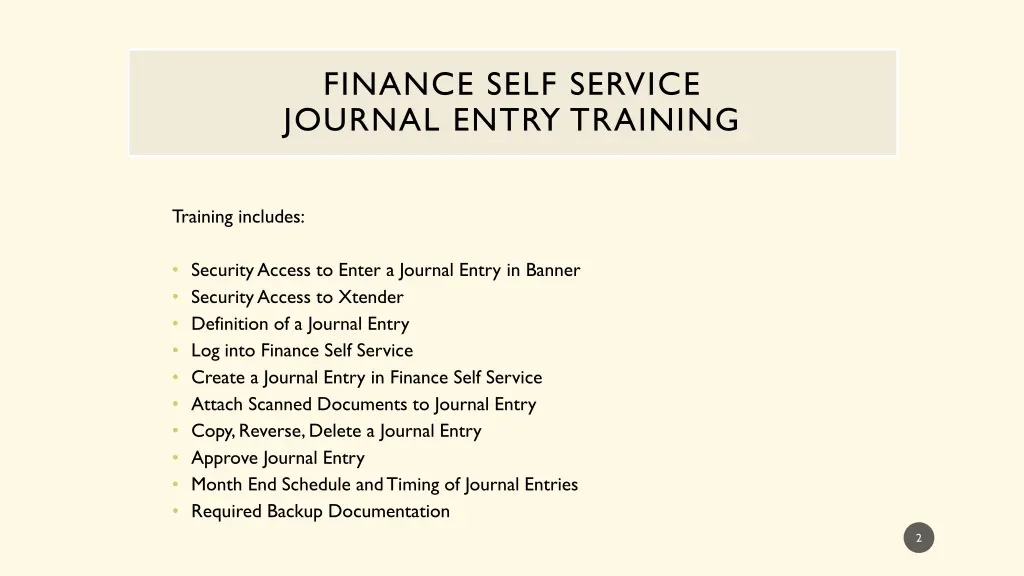
FINANCE SELF SERVICE JOURNAL ENTRY TRAINING Training includes: Security Access to Enter a Journal Entry in Banner Security Access to Xtender Definition of a Journal Entry Log into Finance Self Service Create a Journal Entry in Finance Self Service Attach Scanned Documents to Journal Entry Copy, Reverse, Delete a Journal Entry Approve Journal Entry Month End Schedule and Timing of Journal Entries Required Backup Documentation 2
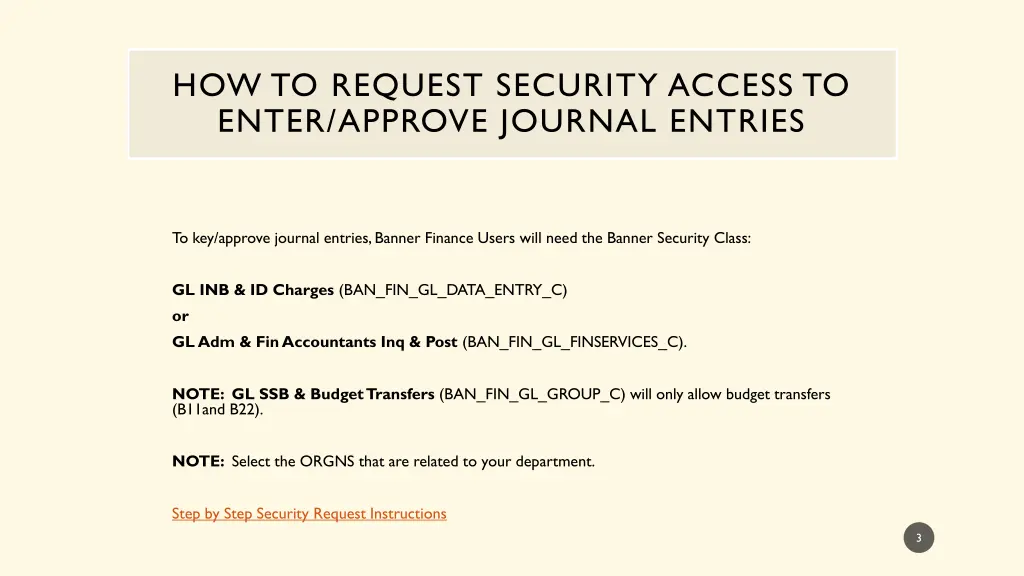
HOW TO REQUEST SECURITY ACCESS TO ENTER/APPROVE JOURNAL ENTRIES To key/approve journal entries, Banner Finance Users will need the Banner Security Class: GL INB & ID Charges (BAN_FIN_GL_DATA_ENTRY_C) or GL Adm & Fin Accountants Inq & Post (BAN_FIN_GL_FINSERVICES_C). NOTE: GL SSB & Budget Transfers (BAN_FIN_GL_GROUP_C) will only allow budget transfers (B11and B22). NOTE: Select the ORGNS that are related to your department. Step by Step Security Request Instructions 3
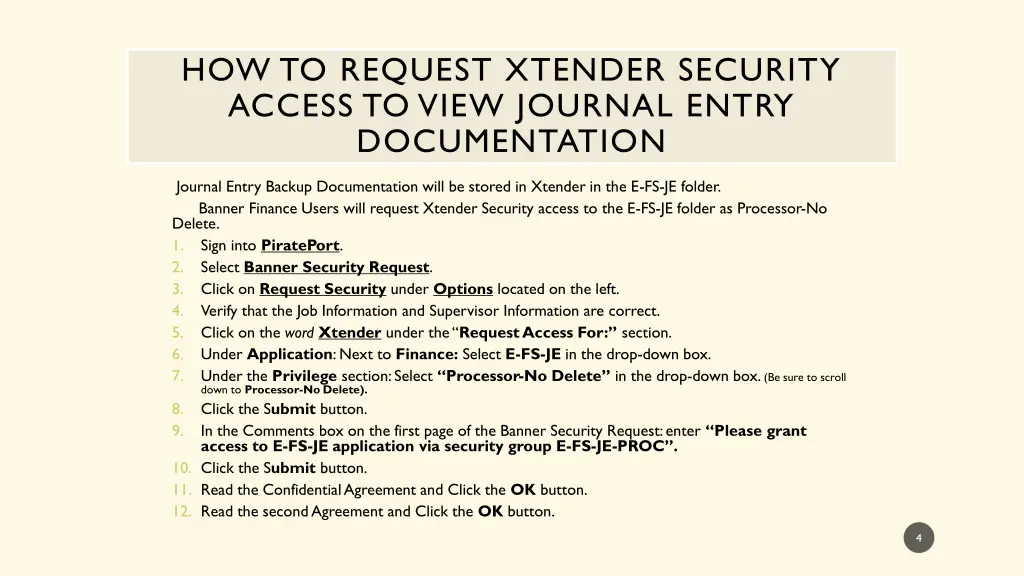
HOW TO REQUEST XTENDER SECURITY ACCESS TO VIEW JOURNAL ENTRY DOCUMENTATION Journal Entry Backup Documentation will be stored in Xtender in the E-FS-JE folder. Banner Finance Users will request Xtender Security access to the E-FS-JE folder as Processor-No Delete. 1. Sign into PiratePort. 2. Select Banner Security Request. 3. Click on Request Security under Options located on the left. 4. Verify that the Job Information and Supervisor Information are correct. 5. Click on the wordXtenderunder the Request Access For: section. 6. Under Application: Next to Finance: Select E-FS-JE in the drop-down box. 7. Under the Privilege section: Select Processor-No Delete in the drop-down box. (Be sure to scroll down to Processor-No Delete). 8. Click the Submit button. 9. In the Comments box on the first page of the Banner Security Request: enter Please grant access to E-FS-JEapplication via security group E-FS-JE-PROC . 10. Click the Submit button. 11. Read the Confidential Agreement and Click the OK button. 12. Read the second Agreement and Click the OK button. 4
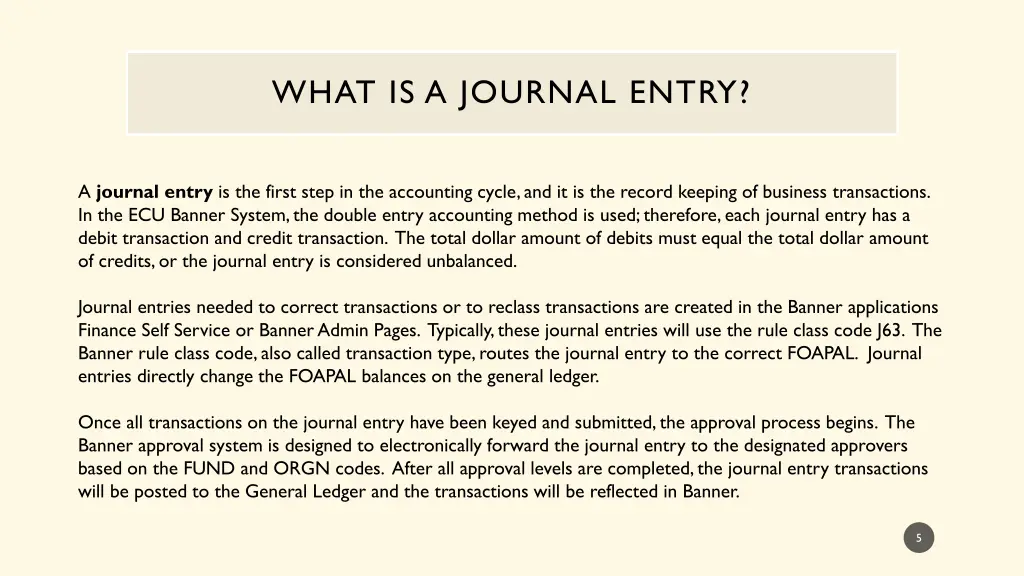
WHAT IS A JOURNAL ENTRY? A journal entry is the first step in the accounting cycle, and it is the record keeping of business transactions. In the ECU Banner System, the double entry accounting method is used; therefore, each journal entry has a debit transaction and credit transaction. The total dollar amount of debits must equal the total dollar amount of credits, or the journal entry is considered unbalanced. Journal entries needed to correct transactions or to reclass transactions are created in the Banner applications Finance Self Service or Banner Admin Pages. Typically, these journal entries will use the rule class code J63. The Banner rule class code, also called transaction type, routes the journal entry to the correct FOAPAL. Journal entries directly change the FOAPAL balances on the general ledger. Once all transactions on the journal entry have been keyed and submitted, the approval process begins. The Banner approval system is designed to electronically forward the journal entry to the designated approvers based on the FUND and ORGN codes. After all approval levels are completed, the journal entry transactions will be posted to the General Ledger and the transactions will be reflected in Banner. 5
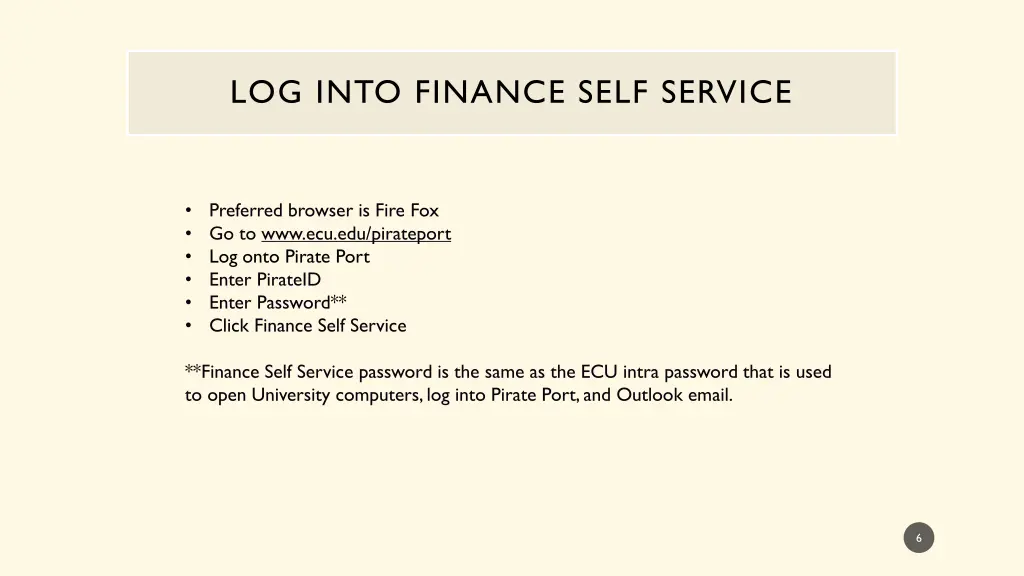
LOG INTO FINANCE SELF SERVICE Preferred browser is Fire Fox Go to www.ecu.edu/pirateport Log onto Pirate Porto Enter PirateID Enter Password** Click Finance Self Service **Finance Self Service password is the same as the ECU intra password that is used to open University computers, log into Pirate Port, and Outlook email. 6
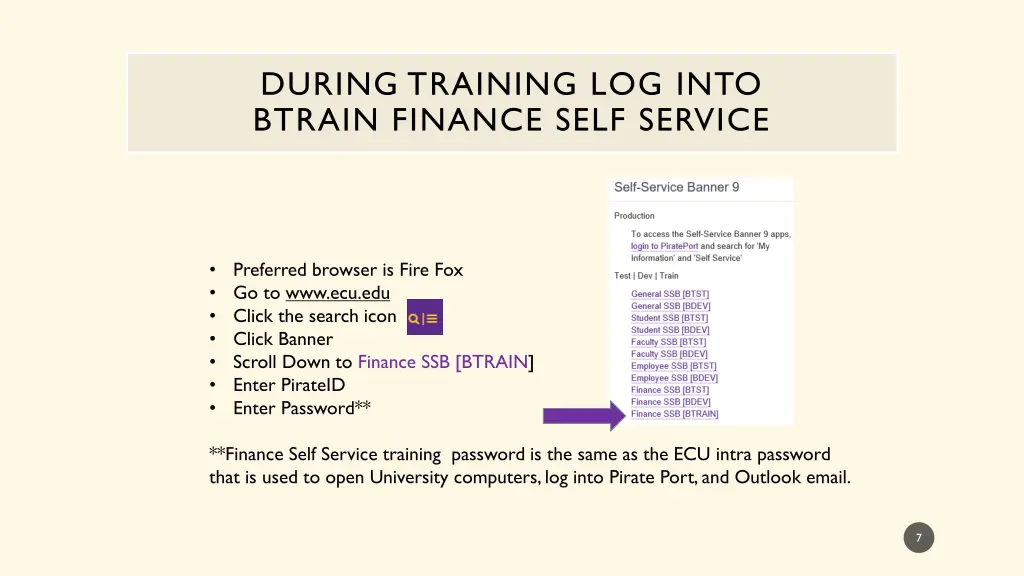
DURING TRAINING LOG INTO BTRAIN FINANCE SELF SERVICE Preferred browser is Fire Fox Go to www.ecu.edu Click the search icon Click Banner Scroll Down to Finance SSB [BTRAIN] Enter PirateID Enter Password** **Finance Self Service training password is the same as the ECU intra password that is used to open University computers, log into Pirate Port, and Outlook email. 7
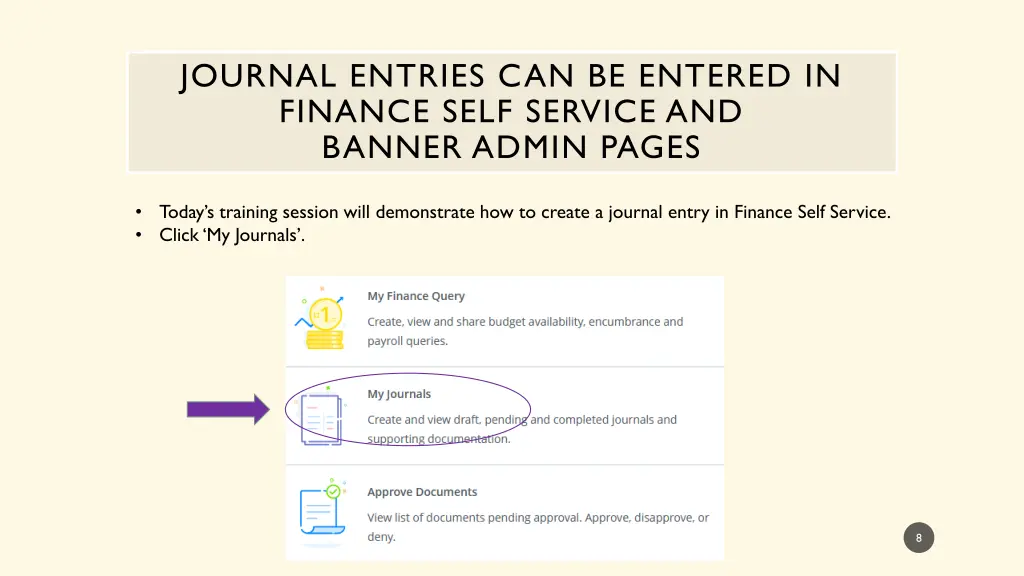
JOURNAL ENTRIES CAN BE ENTERED IN FINANCE SELF SERVICE AND BANNER ADMIN PAGES Today s training session will demonstrate how to create a journal entry in Finance Self Service. Click My Journals . 8
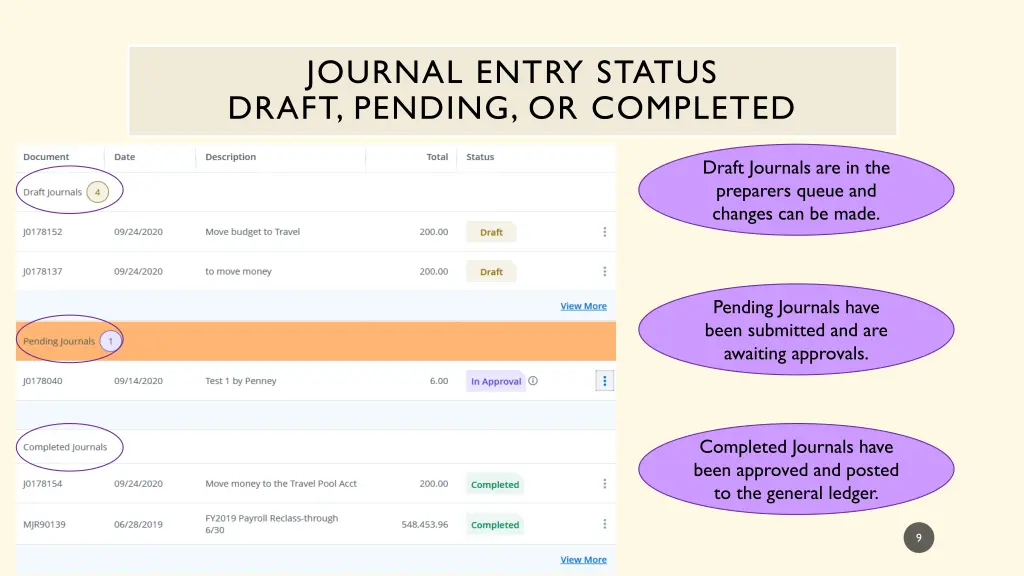
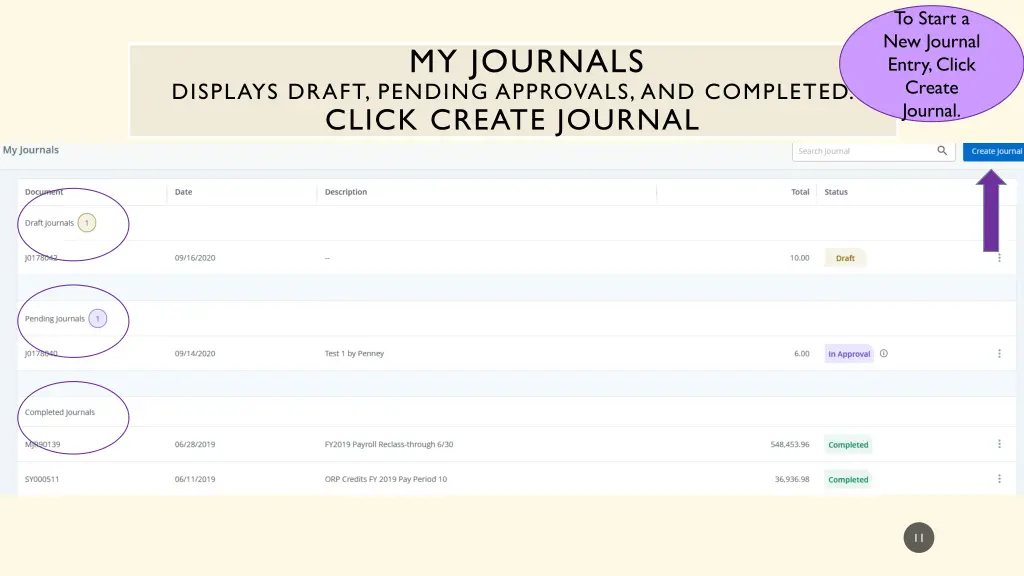
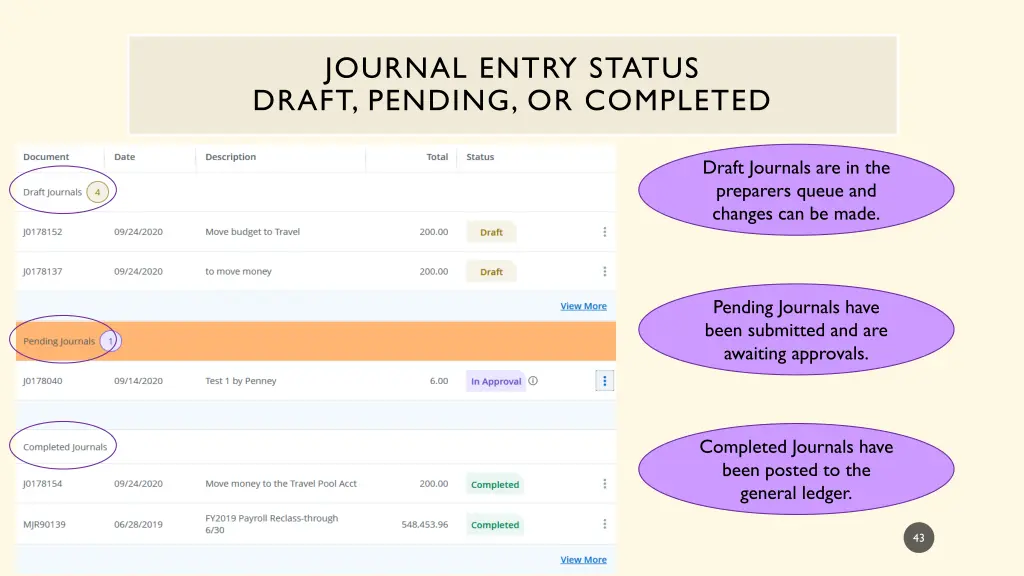
JOURNAL ENTRY STATUS DRAFT, PENDING, OR COMPLETED Draft Journals are in the preparers queue and changes can be made. Finance Self Service Journal Entry Training Journal Entry Training Finance Self Service Pending Journals have been submitted and are awaiting approvals. Completed Journals have been approved and posted to the general ledger. 9
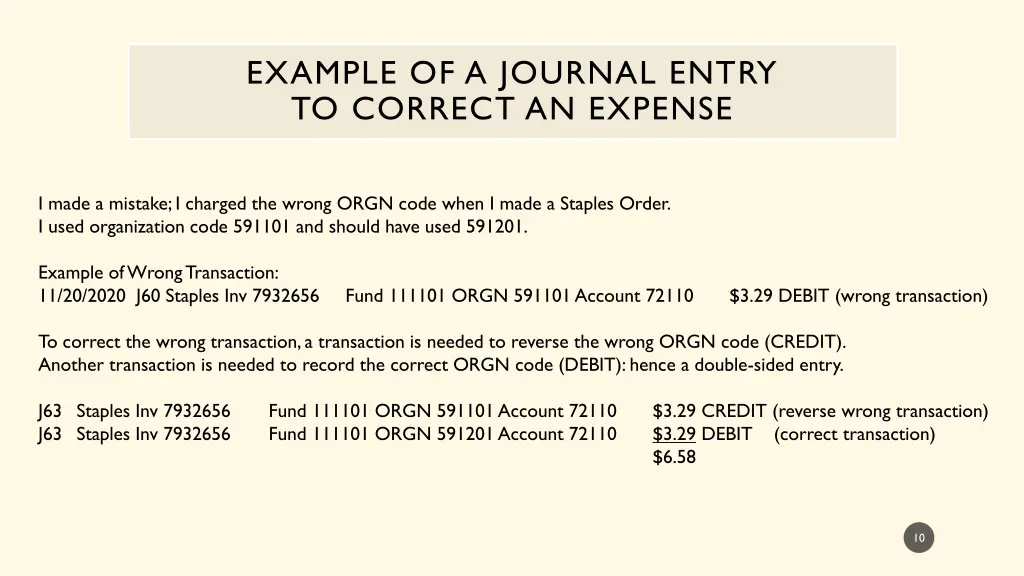
EXAMPLE OF A JOURNAL ENTRY TO CORRECT AN EXPENSE I made a mistake; I charged the wrong ORGN code when I made a Staples Order. I used organization code 591101 and should have used 591201. Example of Wrong Transaction: 11/20/2020 J60 Staples Inv 7932656 Fund 111101 ORGN 591101 Account 72110 $3.29 DEBIT (wrong transaction) To correct the wrong transaction, a transaction is needed to reverse the wrong ORGN code (CREDIT). Another transaction is needed to record the correct ORGN code (DEBIT): hence a double-sided entry. J63 Staples Inv 7932656 J63 Staples Inv 7932656 Fund 111101 ORGN 591101 Account 72110 Fund 111101 ORGN 591201 Account 72110 $3.29 CREDIT (reverse wrong transaction) $3.29 DEBIT (correct transaction) $6.58 10
To Start a New Journal Entry, Click Create Journal. MY JOURNALS DISPLAYS DRAFT, PENDING APPROVALS, AND COMPLETED. CLICK CREATE JOURNAL Finance Self Service Journal Entry Training Journal Entry Training Finance Self Service 11
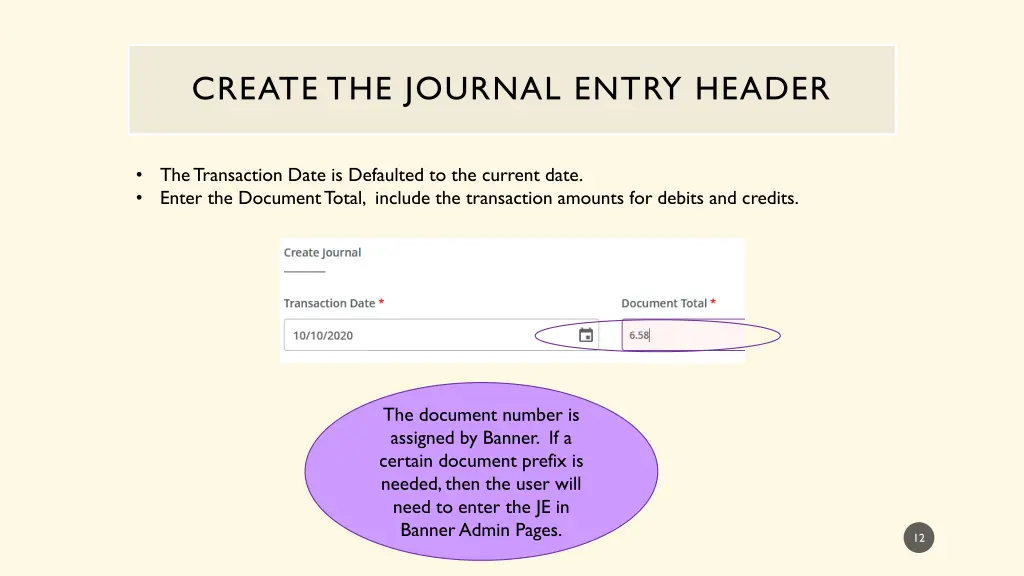
CREATE THE JOURNAL ENTRY HEADER The Transaction Date is Defaulted to the current date. Enter the Document Total, include the transaction amounts for debits and credits. The document number is assigned by Banner. If a certain document prefix is needed, then the user will need to enter the JE in Banner Admin Pages. 12
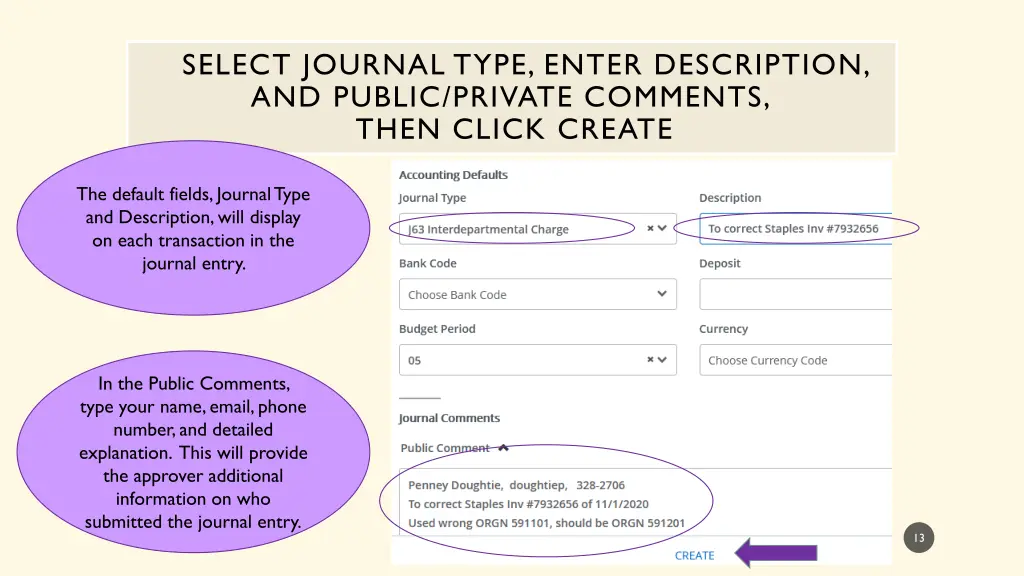
SELECT JOURNAL TYPE, ENTER DESCRIPTION, AND PUBLIC/PRIVATE COMMENTS, THEN CLICK CREATE The default fields, Journal Type and Description, will display on each transaction in the journal entry. In the Public Comments, type your name, email, phone number, and detailed explanation. This will provide the approver additional information on who submitted the journal entry. 13
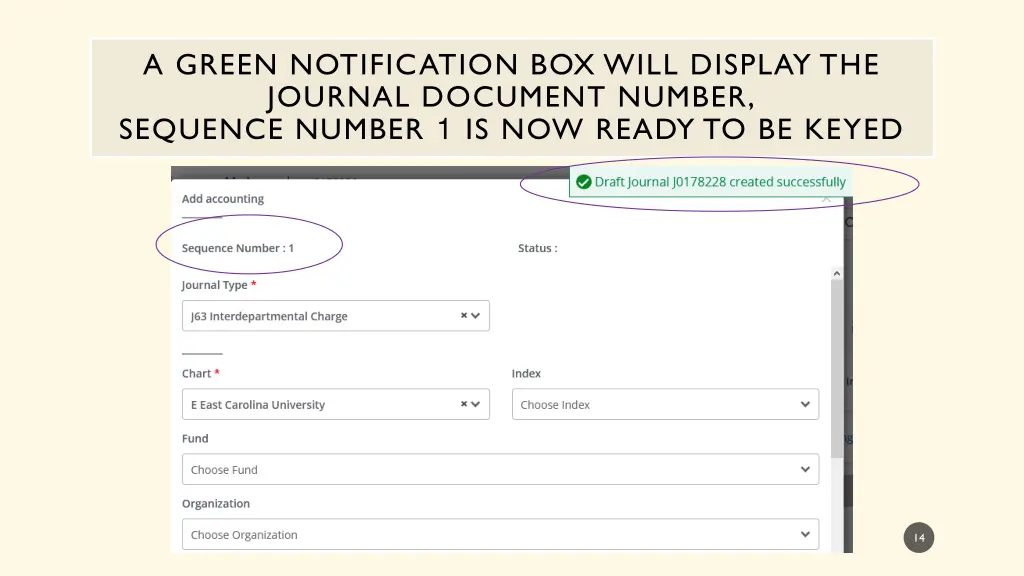
A GREEN NOTIFICATION BOX WILL DISPLAY THE JOURNAL DOCUMENT NUMBER, SEQUENCE NUMBER 1 IS NOW READY TO BE KEYED Finance Self Service Journal Entry Training Journal Entry Training Finance Self Service 14
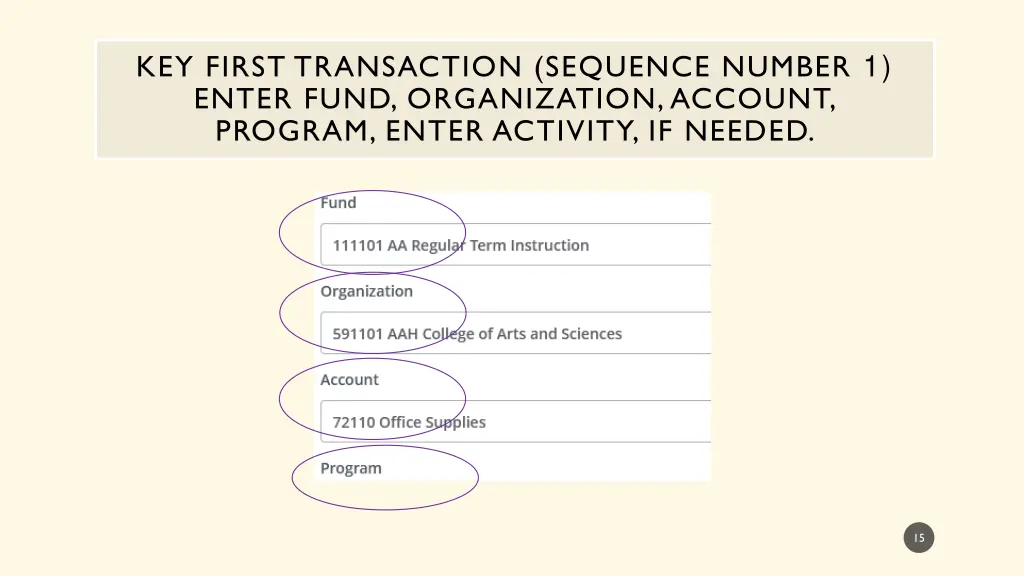
KEY FIRST TRANSACTION (SEQUENCE NUMBER 1) ENTER FUND, ORGANIZATION, ACCOUNT, PROGRAM, ENTER ACTIVITY, IF NEEDED. 15
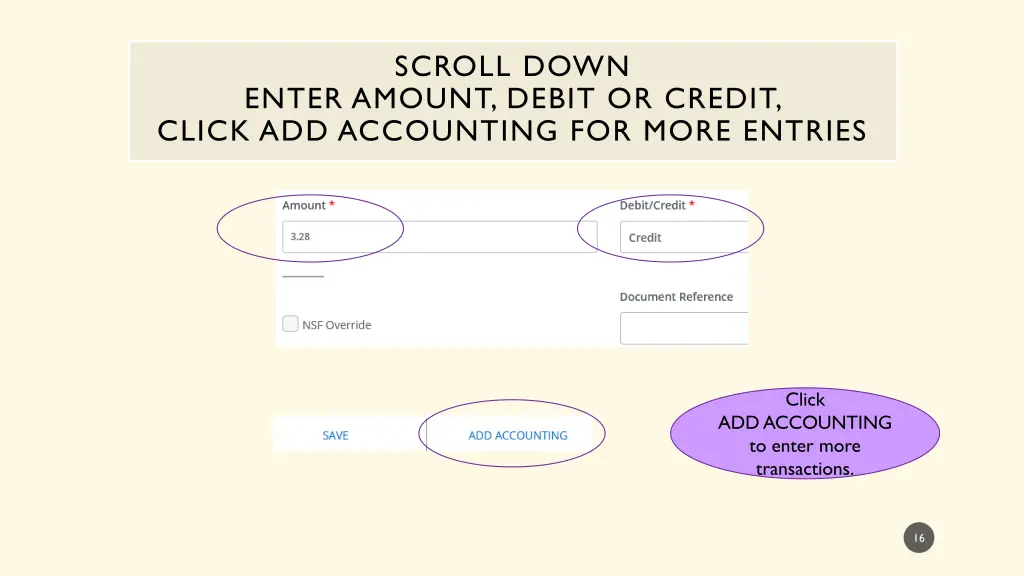
SCROLL DOWN ENTER AMOUNT, DEBIT OR CREDIT, CLICK ADD ACCOUNTING FOR MORE ENTRIES Click ADD ACCOUNTING to enter more transactions. 16
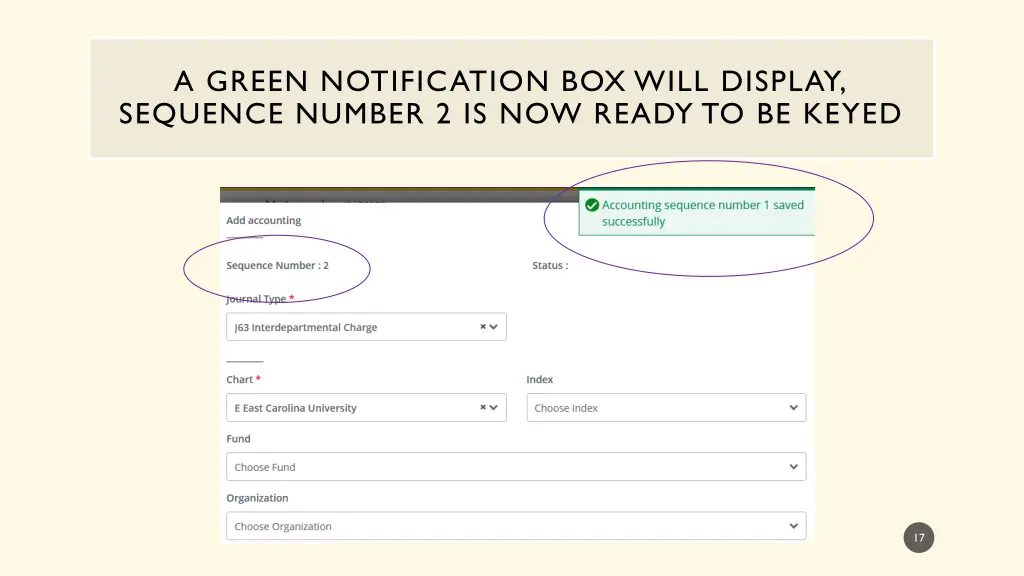
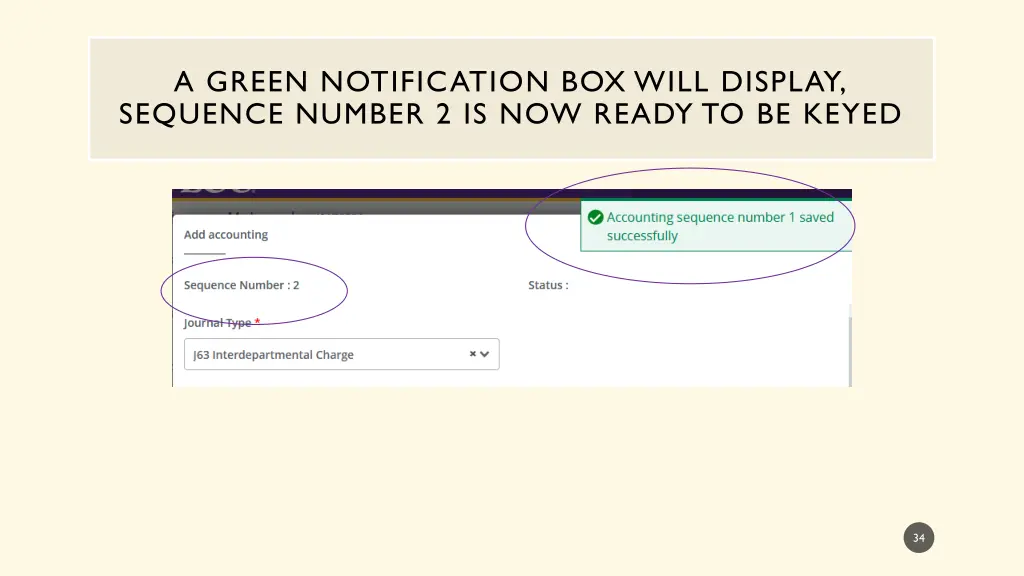
A GREEN NOTIFICATION BOX WILL DISPLAY, SEQUENCE NUMBER 2 IS NOW READY TO BE KEYED 17
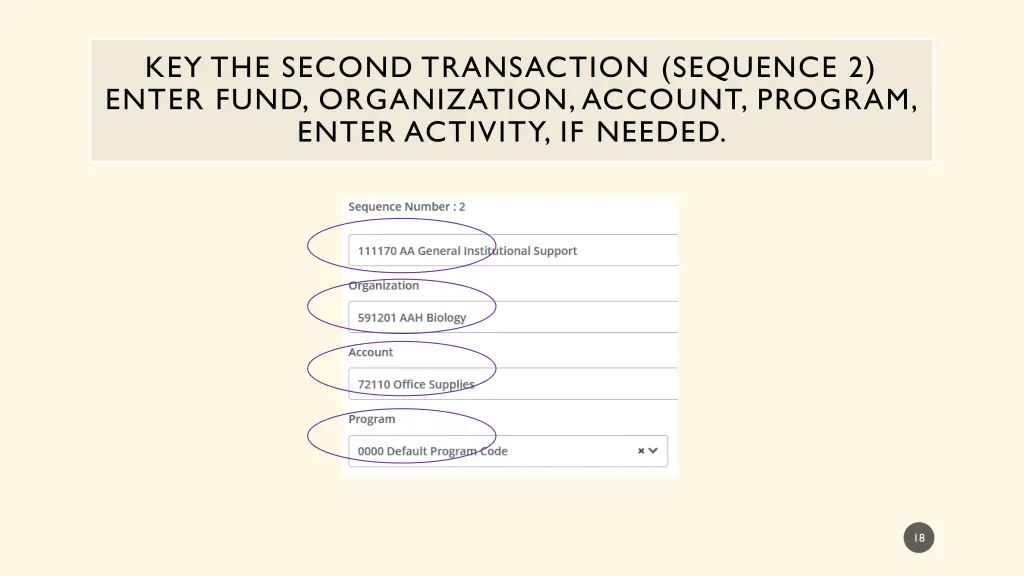
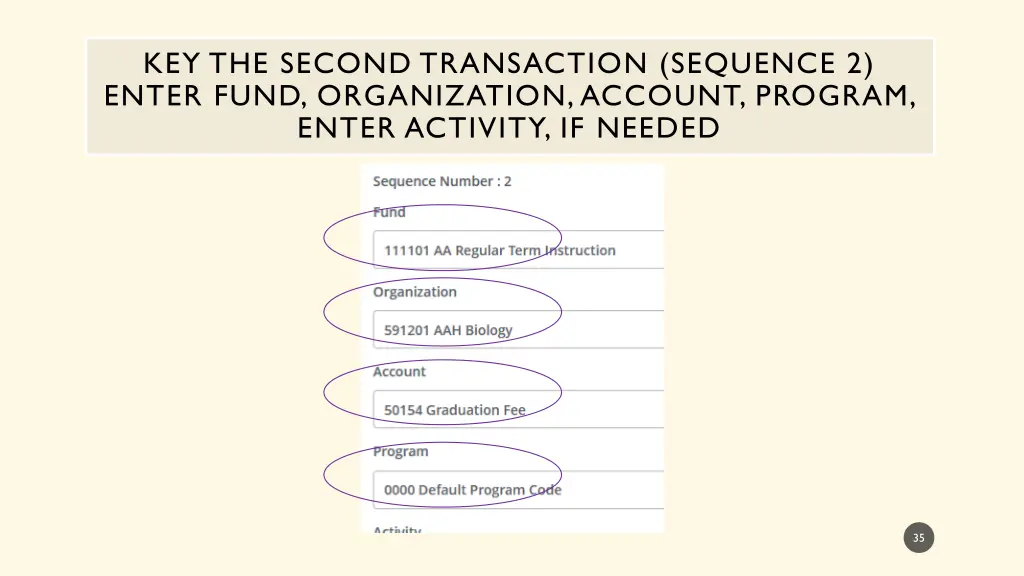
KEY THE SECOND TRANSACTION (SEQUENCE 2) ENTER FUND, ORGANIZATION, ACCOUNT, PROGRAM, ENTER ACTIVITY, IF NEEDED. 18
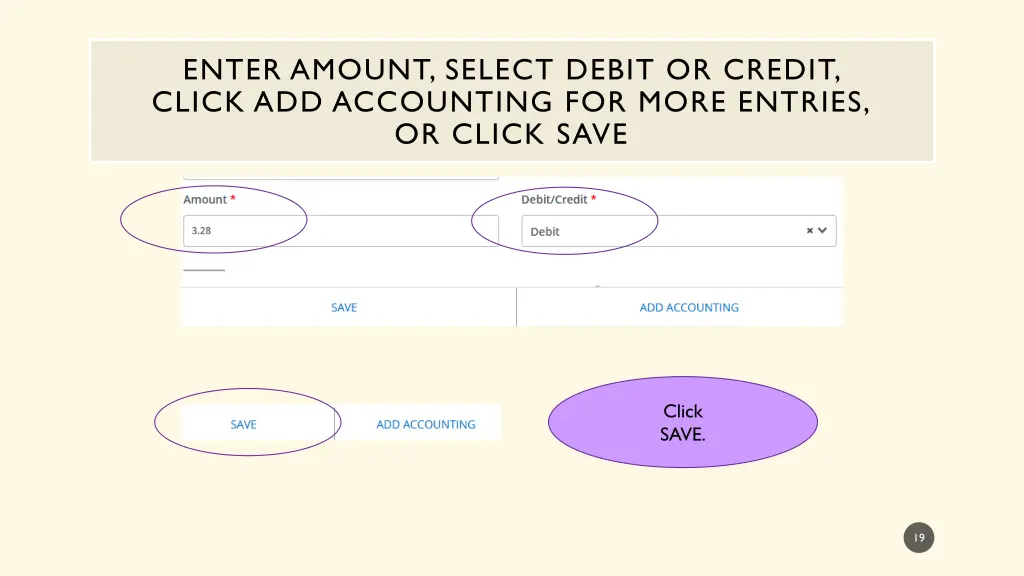
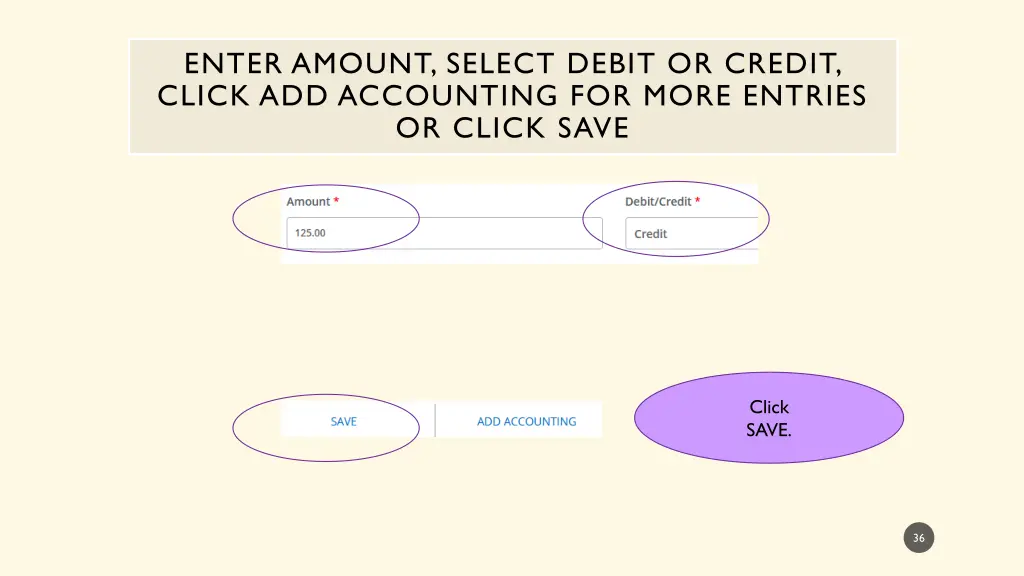
ENTER AMOUNT, SELECT DEBIT OR CREDIT, CLICK ADD ACCOUNTING FOR MORE ENTRIES, OR CLICK SAVE Finance Self Service Journal Entry Training Journal Entry Training Finance Self Service Click SAVE. 19
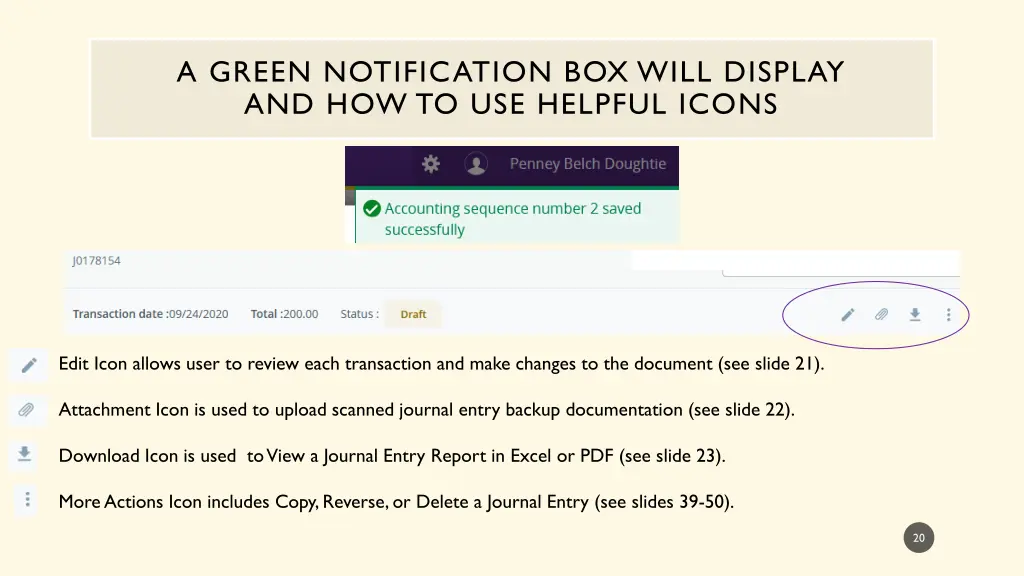
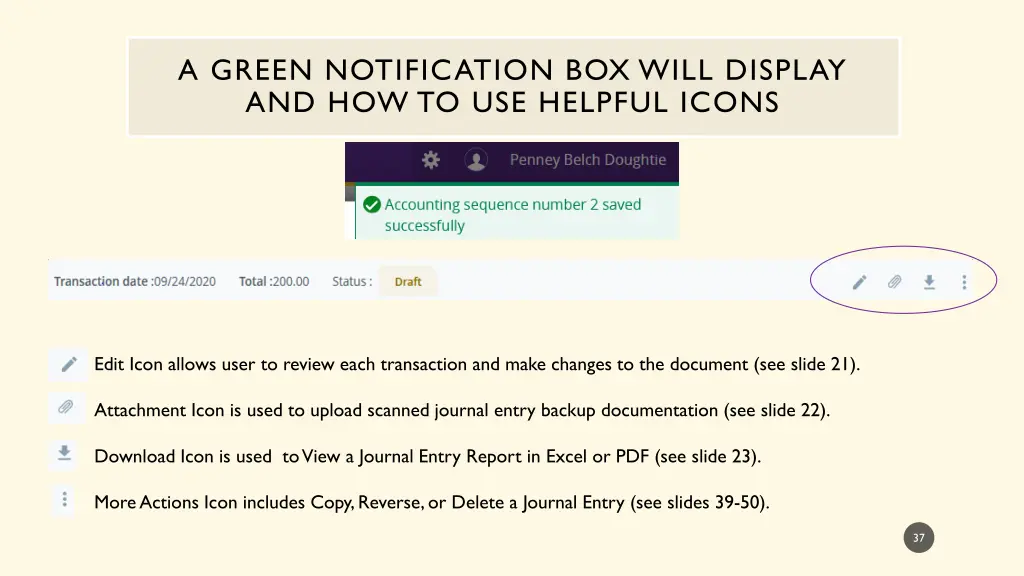
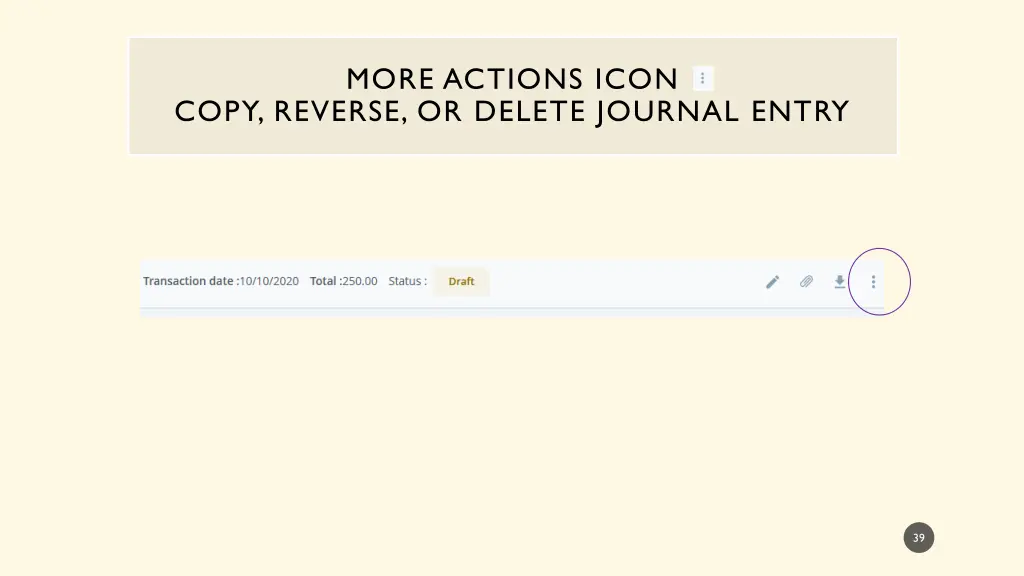
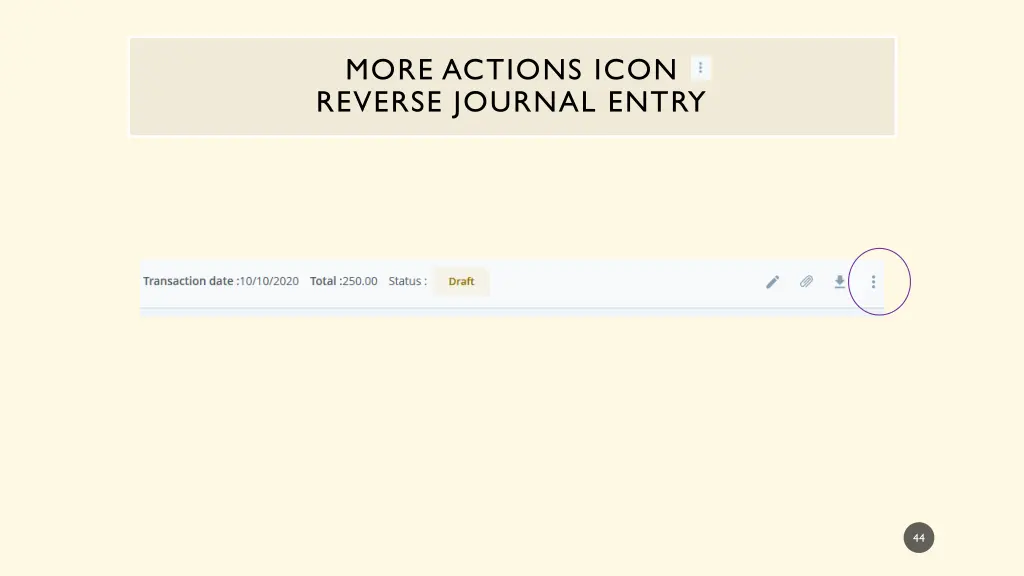
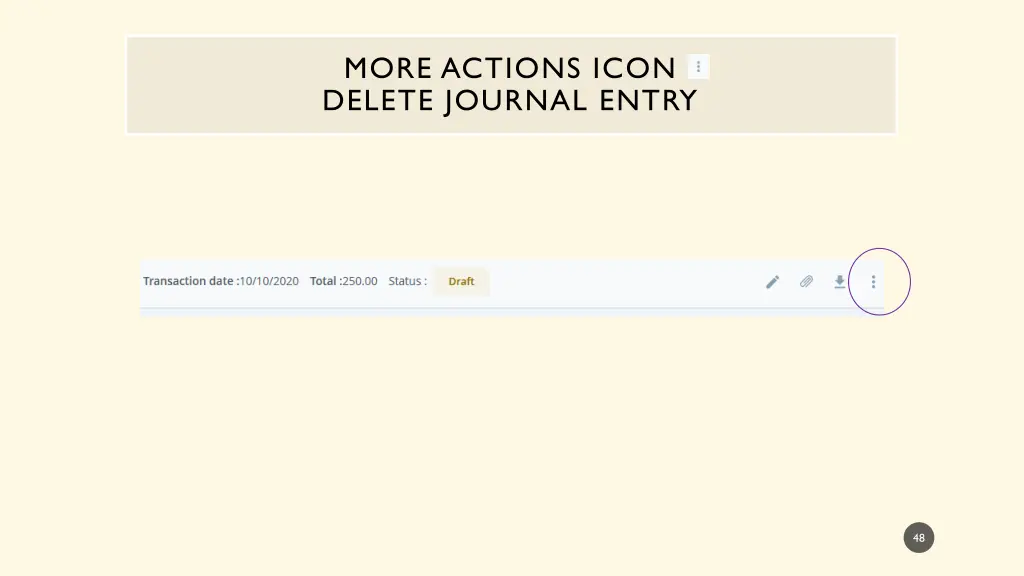
A GREEN NOTIFICATION BOX WILL DISPLAY AND HOW TO USE HELPFUL ICONS Finance Self Service Journal Entry Training Journal Entry Training Finance Self Service Edit Icon allows user to review each transaction and make changes to the document (see slide 21). Attachment Icon is used to upload scanned journal entry backup documentation (see slide 22). Download Icon is used to View a Journal Entry Report in Excel or PDF (see slide 23). More Actions Icon includes Copy, Reverse, or Delete a Journal Entry (see slides 39-50). 20
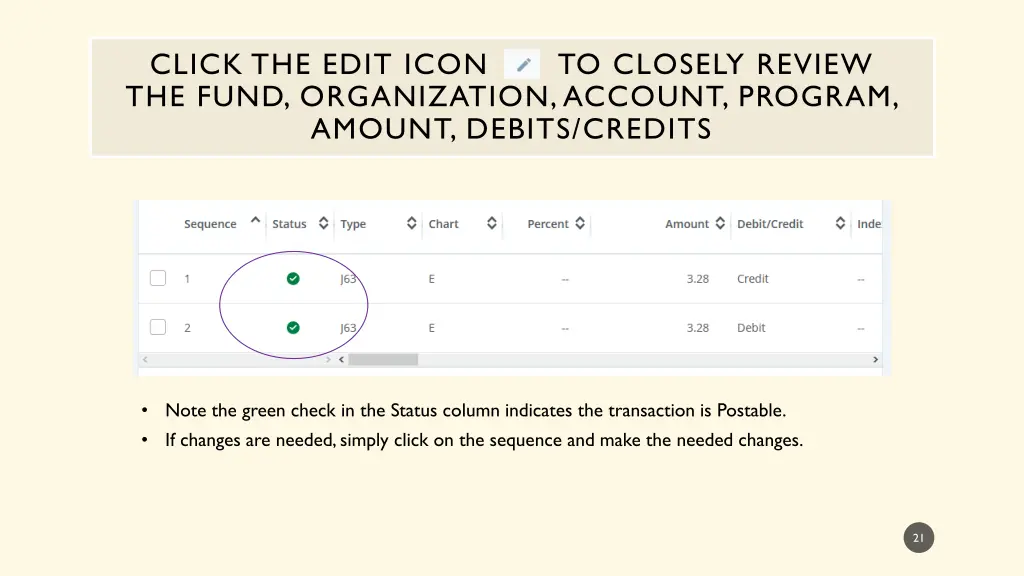
CLICK THE EDIT ICON TO CLOSELY REVIEW THE FUND, ORGANIZATION, ACCOUNT, PROGRAM, AMOUNT, DEBITS/CREDITS Finance Self Service Journal Entry Training Journal Entry Training Finance Self Service Note the green check in the Status column indicates the transaction is Postable. If changes are needed, simply click on the sequence and make the needed changes. 21
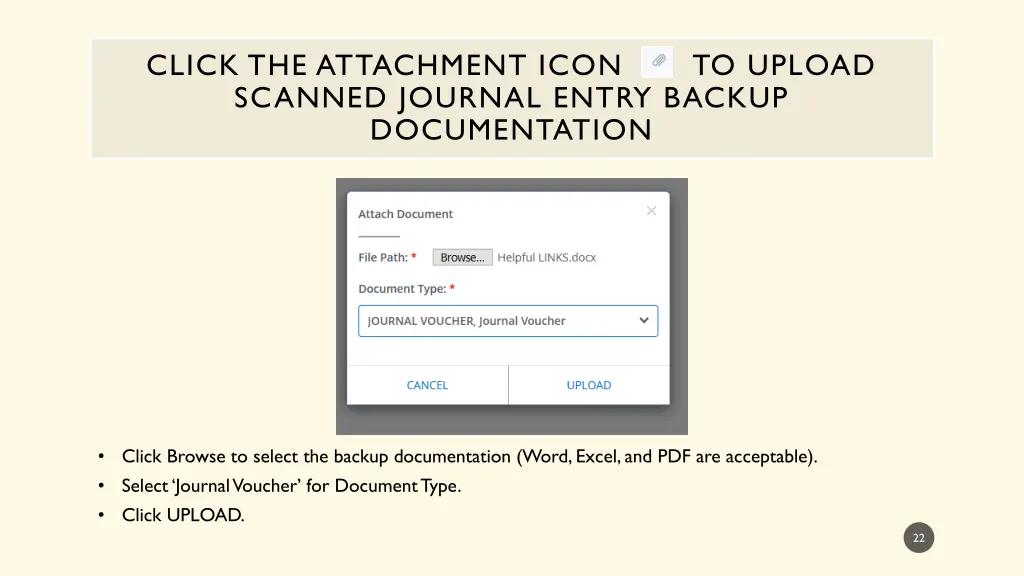
CLICK THE ATTACHMENT ICON TO UPLOAD SCANNED JOURNAL ENTRY BACKUP DOCUMENTATION Click Browse to select the backup documentation (Word, Excel, and PDF are acceptable). Select Journal Voucher for Document Type. Click UPLOAD. 22
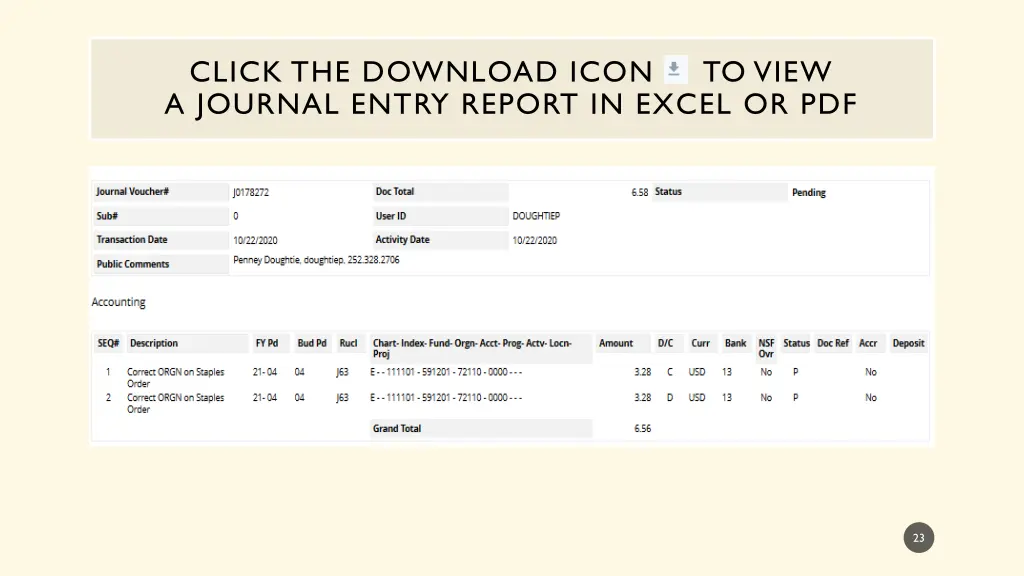
CLICK THE DOWNLOAD ICON TO VIEW A JOURNAL ENTRY REPORT IN EXCEL OR PDF Finance Self Service Journal Entry Training Journal Entry Training Finance Self Service 23
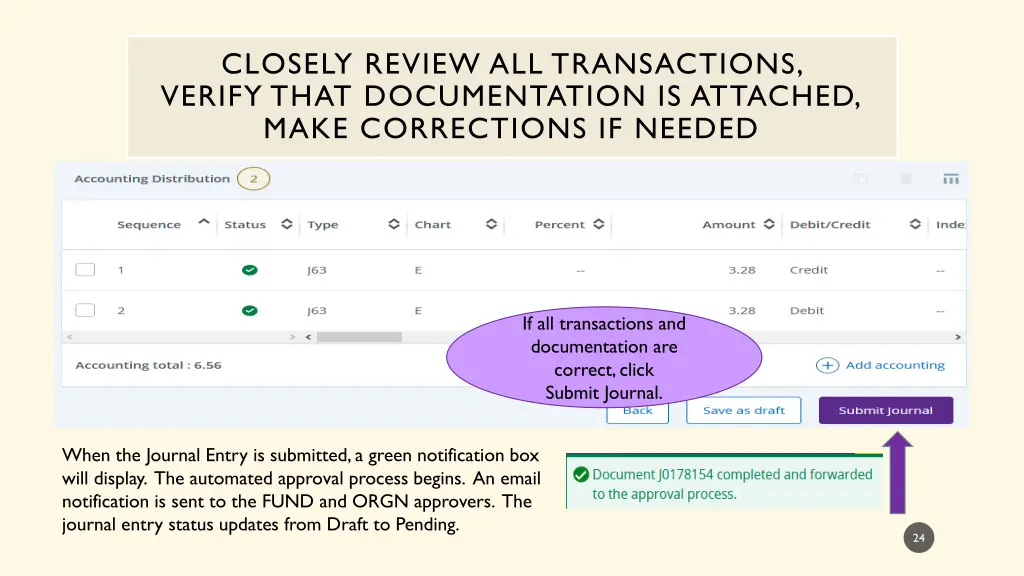
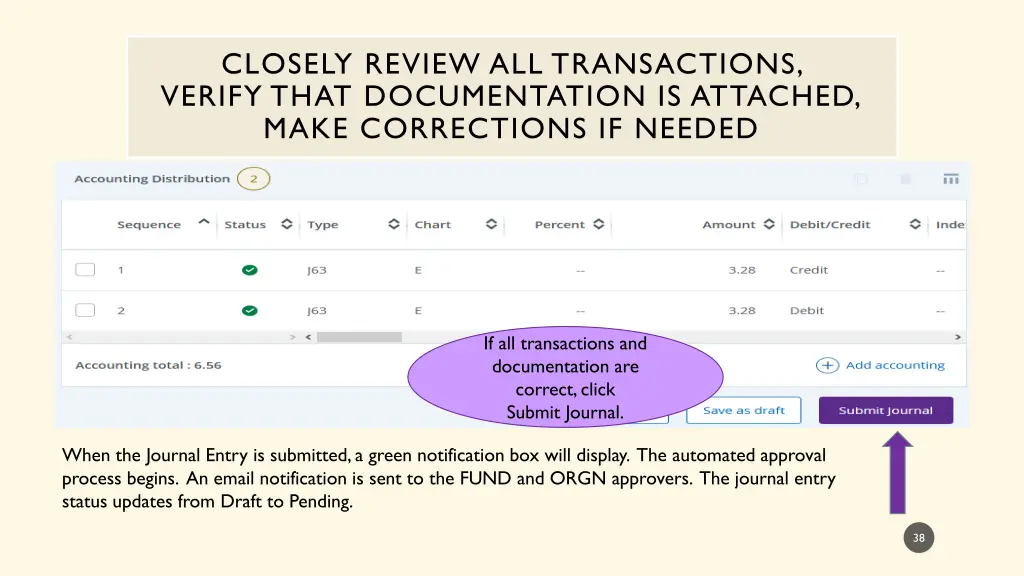
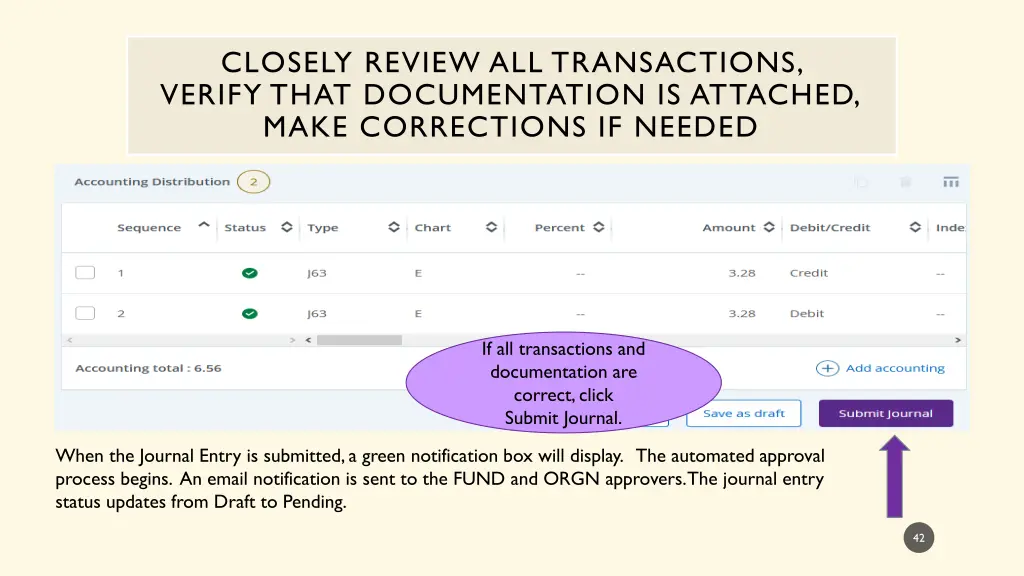
CLOSELY REVIEW ALL TRANSACTIONS, VERIFY THAT DOCUMENTATION IS ATTACHED, MAKE CORRECTIONS IF NEEDED Finance Self Service Journal Entry Training Journal Entry Training Finance Self Service If all transactions and documentation are correct, click Submit Journal. When the Journal Entry is submitted, a green notification box will display. The automated approval process begins. An email notification is sent to the FUND and ORGN approvers. The journal entry status updates from Draft to Pending. 24
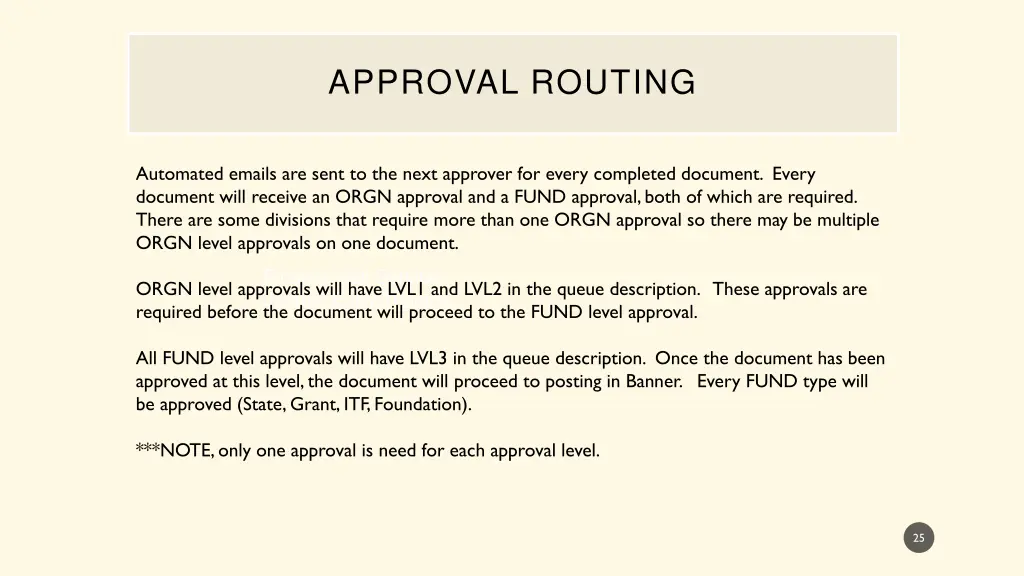
APPROVAL ROUTING Automated emails are sent to the next approver for every completed document. Every document will receive an ORGN approval and a FUND approval, both of which are required. There are some divisions that require more than one ORGN approval so there may be multiple ORGN level approvals on one document. Finance Self Service Journal Entry Training Journal Entry Training Finance Self Service ORGN level approvals will have LVL1 and LVL2 in the queue description. These approvals are required before the document will proceed to the FUND level approval. All FUND level approvals will have LVL3 in the queue description. Once the document has been approved at this level, the document will proceed to posting in Banner. Every FUND type will be approved (State, Grant, ITF, Foundation). ***NOTE, only one approval is need for each approval level. 25
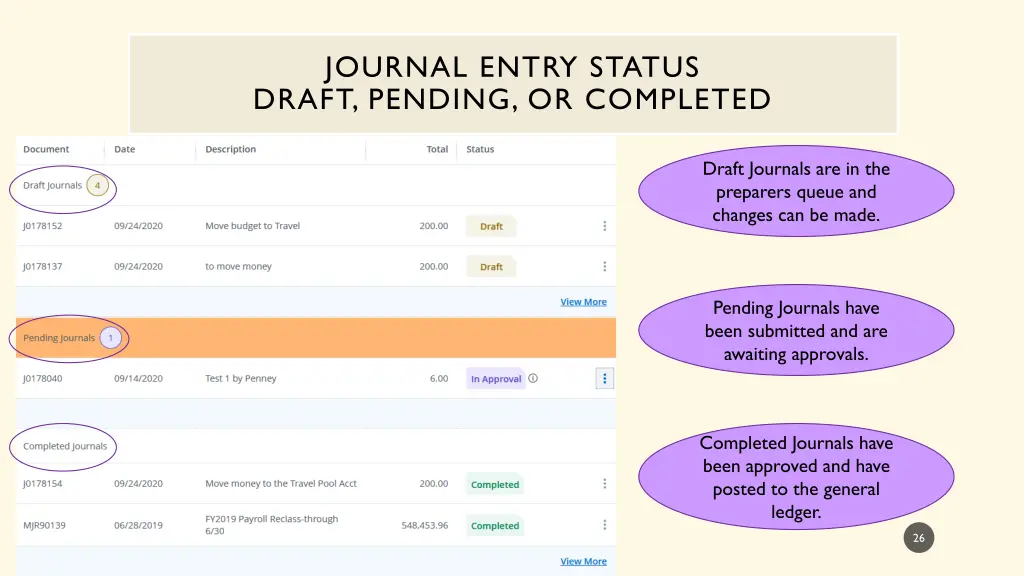
JOURNAL ENTRY STATUS DRAFT, PENDING, OR COMPLETED Draft Journals are in the preparers queue and changes can be made. Finance Self Service Journal Entry Training Journal Entry Training Finance Self Service Pending Journals have been submitted and are awaiting approvals. Completed Journals have been approved and have posted to the general ledger. 26
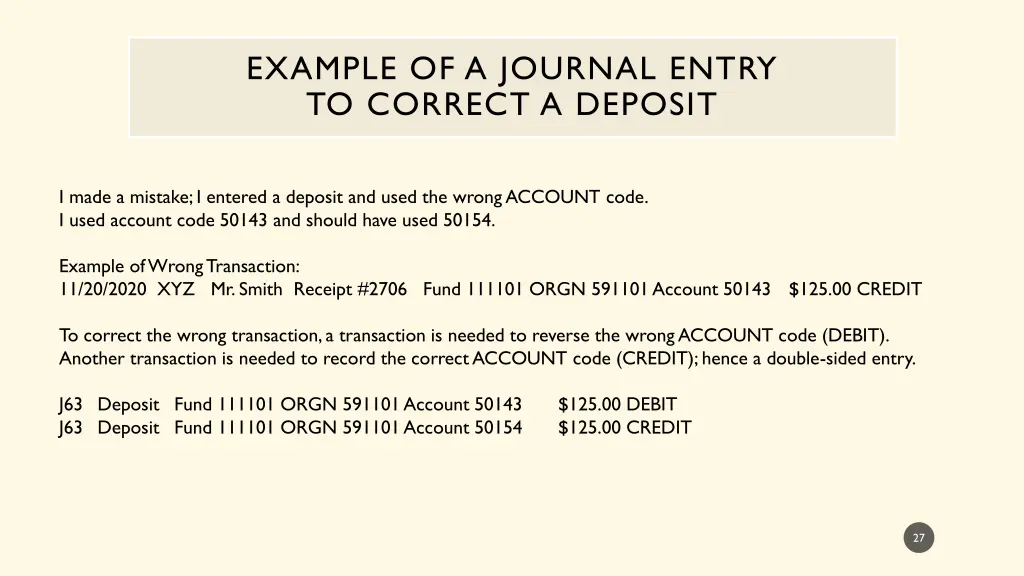
EXAMPLE OF A JOURNAL ENTRY TO CORRECT A DEPOSIT I made a mistake; I entered a deposit and used the wrong ACCOUNT code. I used account code 50143 and should have used 50154. Example of Wrong Transaction: 11/20/2020 XYZ Mr. Smith Receipt #2706 Fund 111101 ORGN 591101 Account 50143 $125.00 CREDIT To correct the wrong transaction, a transaction is needed to reverse the wrong ACCOUNT code (DEBIT). Another transaction is needed to record the correct ACCOUNT code (CREDIT); hence a double-sided entry. J63 Deposit Fund 111101 ORGN 591101 Account 50143 J63 Deposit Fund 111101 ORGN 591101 Account 50154 $125.00 DEBIT $125.00 CREDIT 27
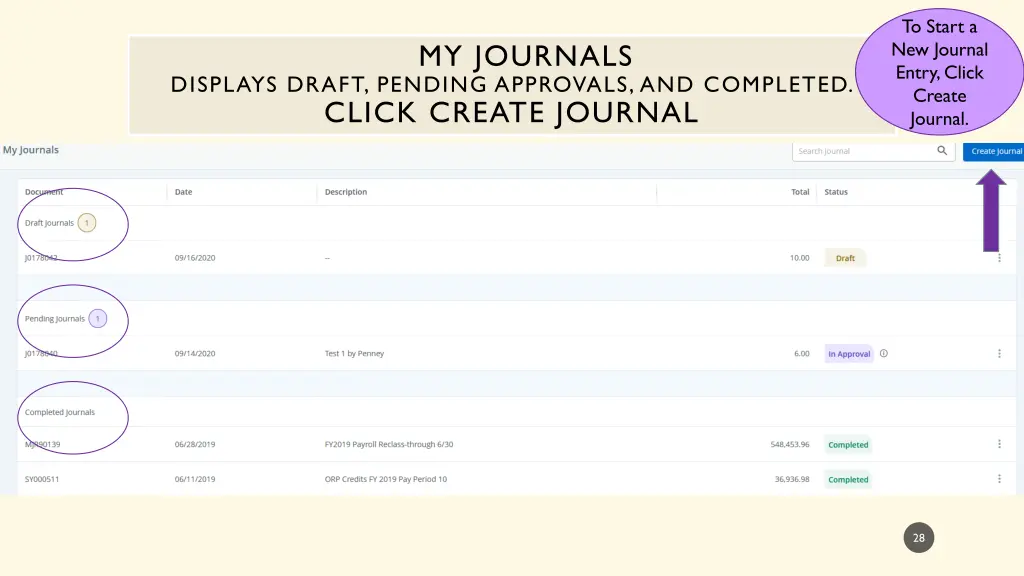
To Start a New Journal Entry, Click Create Journal. MY JOURNALS DISPLAYS DRAFT, PENDING APPROVALS, AND COMPLETED. CLICK CREATE JOURNAL Finance Self Service Journal Entry Training Journal Entry Training Finance Self Service 28
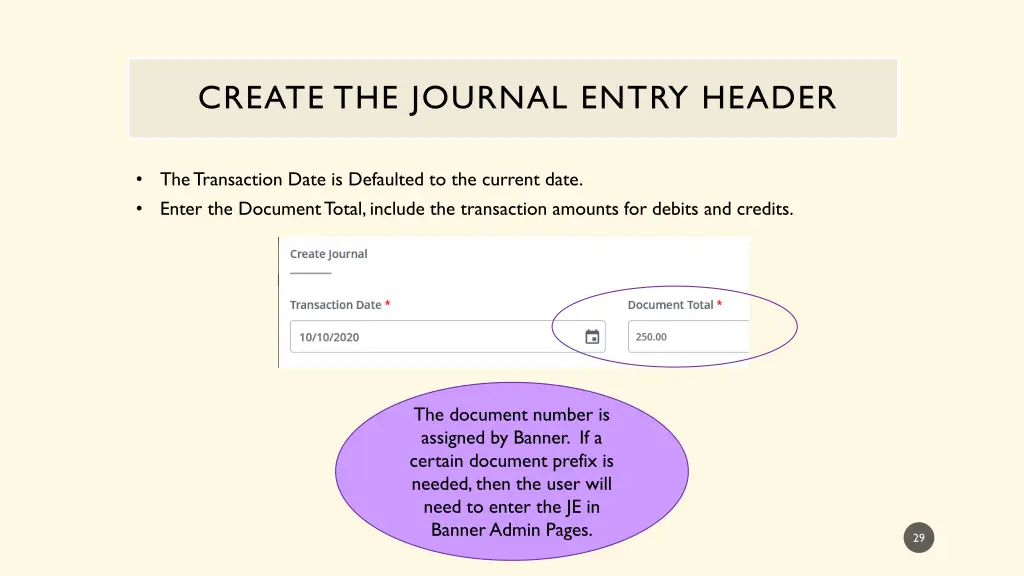
CREATE THE JOURNAL ENTRY HEADER The Transaction Date is Defaulted to the current date. Enter the Document Total, include the transaction amounts for debits and credits. The document number is assigned by Banner. If a certain document prefix is needed, then the user will need to enter the JE in Banner Admin Pages. 29
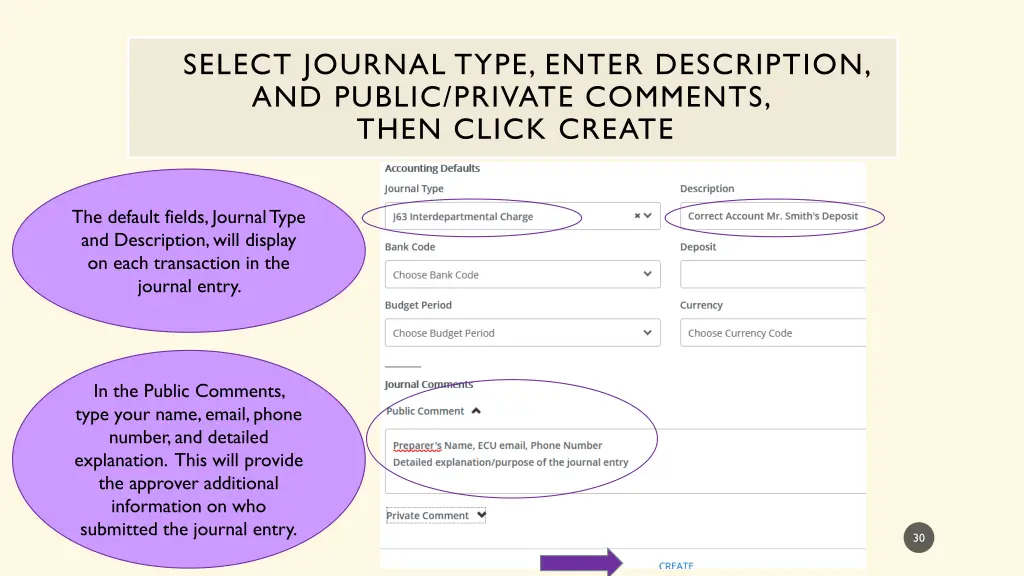
SELECT JOURNAL TYPE, ENTER DESCRIPTION, AND PUBLIC/PRIVATE COMMENTS, THEN CLICK CREATE The default fields, Journal Type and Description, will display on each transaction in the journal entry. In the Public Comments, type your name, email, phone number, and detailed explanation. This will provide the approver additional information on who submitted the journal entry. 30
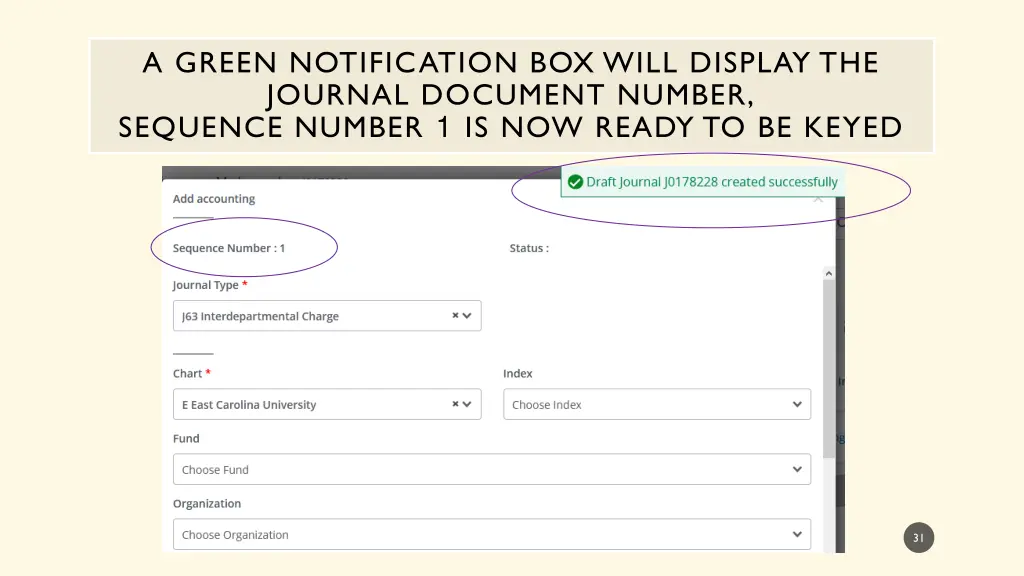
A GREEN NOTIFICATION BOX WILL DISPLAY THE JOURNAL DOCUMENT NUMBER, SEQUENCE NUMBER 1 IS NOW READY TO BE KEYED Finance Self Service Journal Entry Training Journal Entry Training Finance Self Service 31
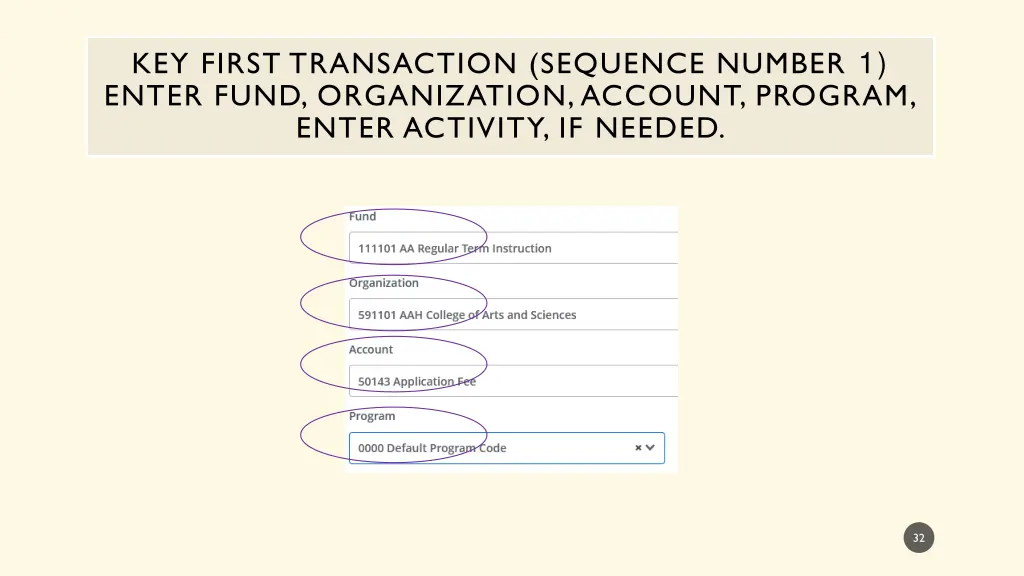
KEY FIRST TRANSACTION (SEQUENCE NUMBER 1) ENTER FUND, ORGANIZATION, ACCOUNT, PROGRAM, ENTER ACTIVITY, IF NEEDED. 32
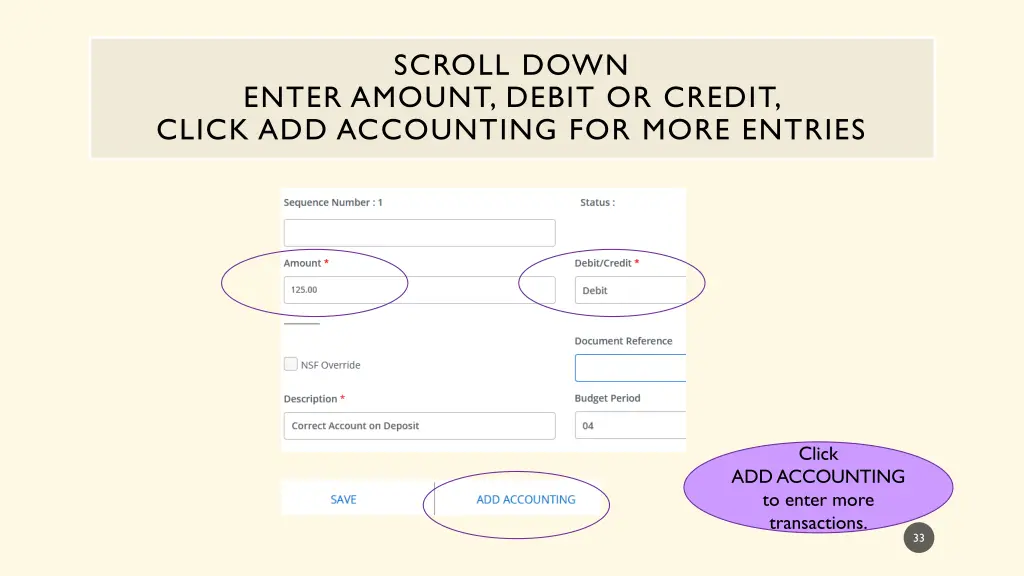
SCROLL DOWN ENTER AMOUNT, DEBIT OR CREDIT, CLICK ADD ACCOUNTING FOR MORE ENTRIES Click ADD ACCOUNTING to enter more transactions. 33
A GREEN NOTIFICATION BOX WILL DISPLAY, SEQUENCE NUMBER 2 IS NOW READY TO BE KEYED 34
KEY THE SECOND TRANSACTION (SEQUENCE 2) ENTER FUND, ORGANIZATION, ACCOUNT, PROGRAM, ENTER ACTIVITY, IF NEEDED 35
ENTER AMOUNT, SELECT DEBIT OR CREDIT, CLICK ADD ACCOUNTING FOR MORE ENTRIES OR CLICK SAVE Click SAVE. 36
A GREEN NOTIFICATION BOX WILL DISPLAY AND HOW TO USE HELPFUL ICONS Edit Icon allows user to review each transaction and make changes to the document (see slide 21). Attachment Icon is used to upload scanned journal entry backup documentation (see slide 22). Download Icon is used to View a Journal Entry Report in Excel or PDF (see slide 23). More Actions Icon includes Copy, Reverse, or Delete a Journal Entry (see slides 39-50). 37
CLOSELY REVIEW ALL TRANSACTIONS, VERIFY THAT DOCUMENTATION IS ATTACHED, MAKE CORRECTIONS IF NEEDED Finance Self Service Journal Entry Training Journal Entry Training Finance Self Service If all transactions and documentation are correct, click Submit Journal. When the Journal Entry is submitted, a green notification box will display. The automated approval process begins. An email notification is sent to the FUND and ORGN approvers. The journal entry status updates from Draft to Pending. 38
MORE ACTIONS ICON COPY, REVERSE, OR DELETE JOURNAL ENTRY Finance Self Service Journal Entry Training Journal Entry Training Finance Self Service 39
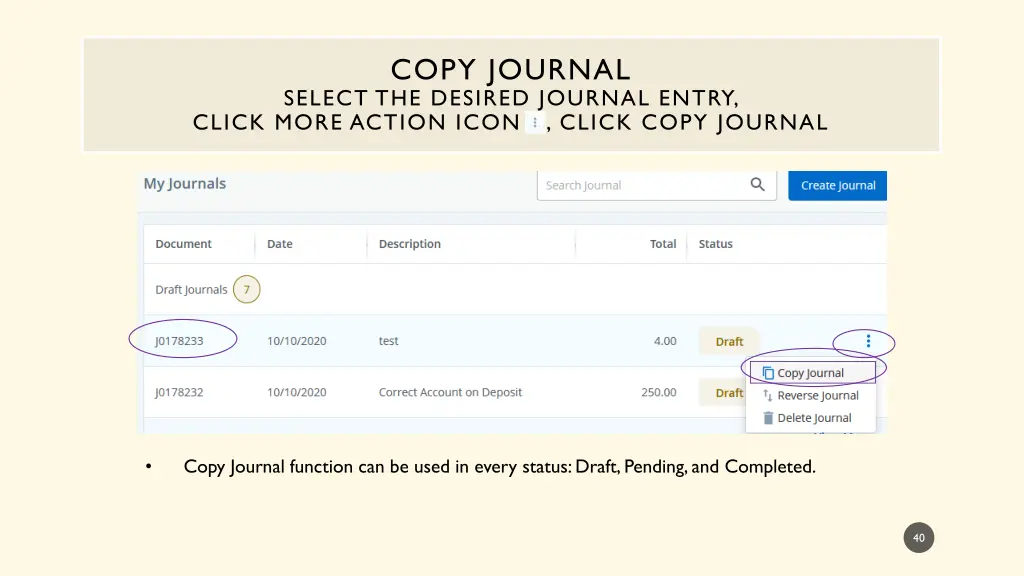
COPY JOURNAL SELECT THE DESIRED JOURNAL ENTRY, CLICK MORE ACTION ICON , CLICK COPY JOURNAL Finance Self Service Journal Entry Training Journal Entry Training Finance Self Service Copy Journal function can be used in every status: Draft, Pending, and Completed. 40
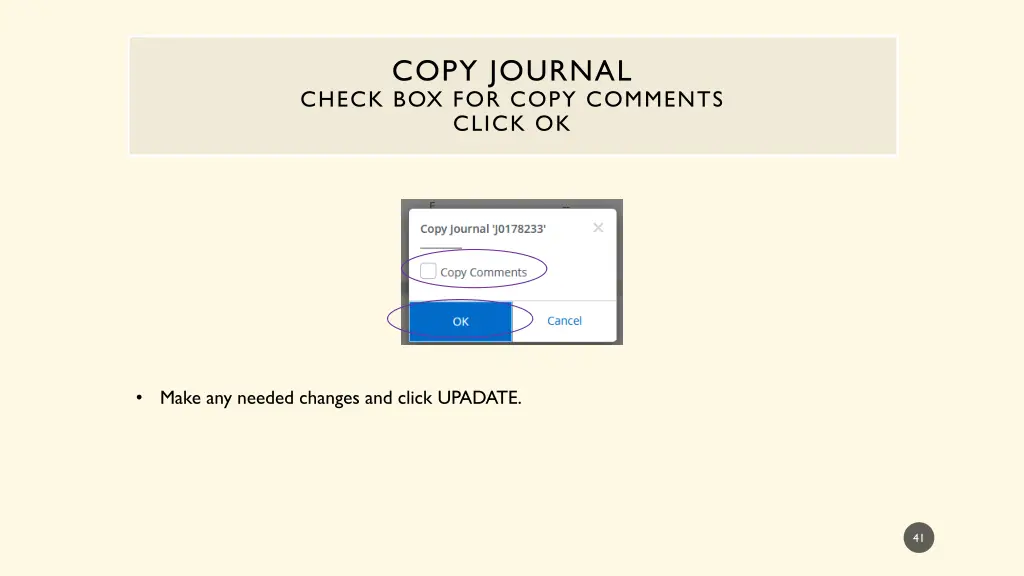
COPY JOURNAL CHECK BOX FOR COPY COMMENTS CLICK OK Make any needed changes and click UPADATE. 41
CLOSELY REVIEW ALL TRANSACTIONS, VERIFY THAT DOCUMENTATION IS ATTACHED, MAKE CORRECTIONS IF NEEDED Finance Self Service Journal Entry Training Journal Entry Training Finance Self Service If all transactions and documentation are correct, click Submit Journal. When the Journal Entry is submitted, a green notification box will display. The automated approval process begins. An email notification is sent to the FUND and ORGN approvers. The journal entry status updates from Draft to Pending. 42
JOURNAL ENTRY STATUS DRAFT, PENDING, OR COMPLETED Draft Journals are in the preparers queue and changes can be made. Pending Journals have been submitted and are awaiting approvals. Completed Journals have been posted to the general ledger. 43
MORE ACTIONS ICON REVERSE JOURNAL ENTRY Finance Self Service Journal Entry Training Journal Entry Training Finance Self Service 44
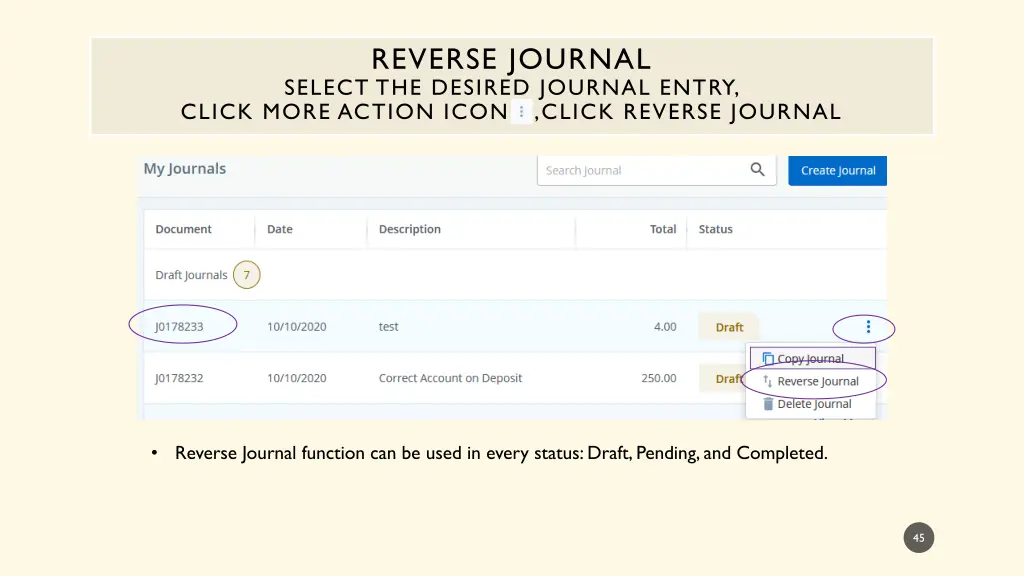
REVERSE JOURNAL SELECT THE DESIRED JOURNAL ENTRY, CLICK MORE ACTION ICON ,CLICK REVERSE JOURNAL Finance Self Service Journal Entry Training Journal Entry Training Finance Self Service Reverse Journal function can be used in every status: Draft, Pending, and Completed. 45
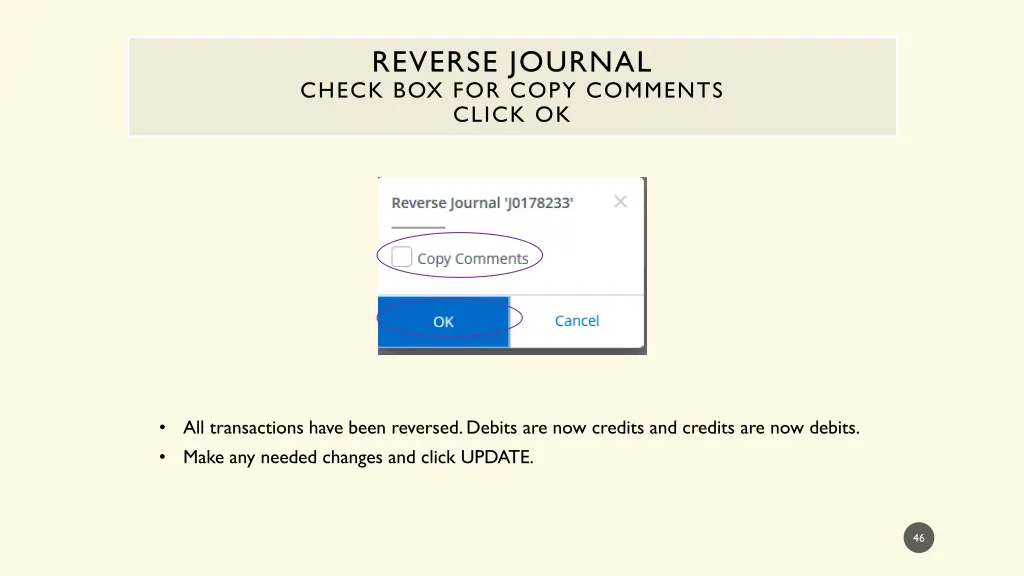
REVERSE JOURNAL CHECK BOX FOR COPY COMMENTS CLICK OK All transactions have been reversed. Debits are now credits and credits are now debits. Make any needed changes and click UPDATE. 46
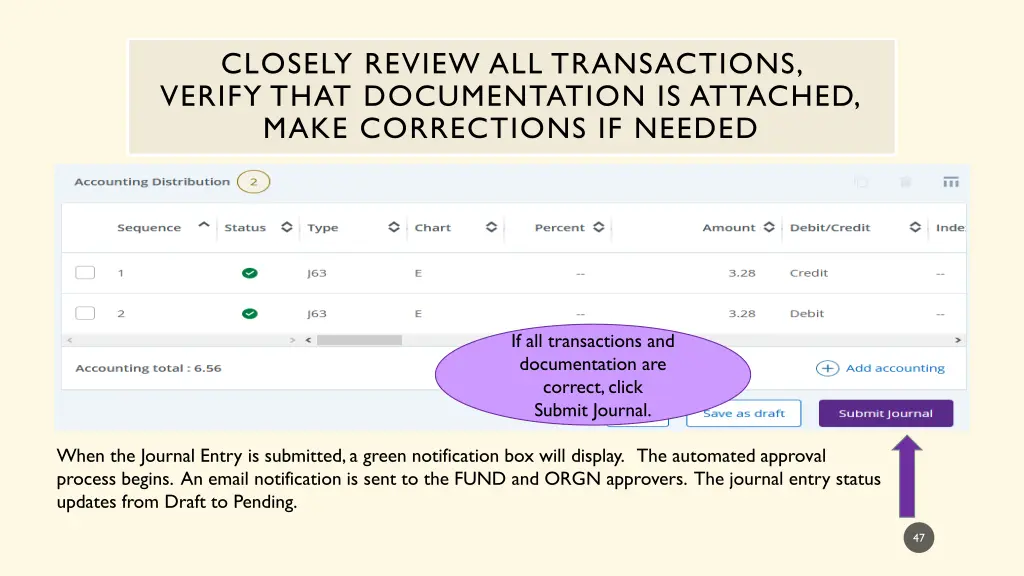
CLOSELY REVIEW ALL TRANSACTIONS, VERIFY THAT DOCUMENTATION IS ATTACHED, MAKE CORRECTIONS IF NEEDED Finance Self Service Journal Entry Training Journal Entry Training Finance Self Service If all transactions and documentation are correct, click Submit Journal. When the Journal Entry is submitted, a green notification box will display. The automated approval process begins. An email notification is sent to the FUND and ORGN approvers. The journal entry status updates from Draft to Pending. 47
MORE ACTIONS ICON DELETE JOURNAL ENTRY Finance Self Service Journal Entry Training Journal Entry Training Finance Self Service 48
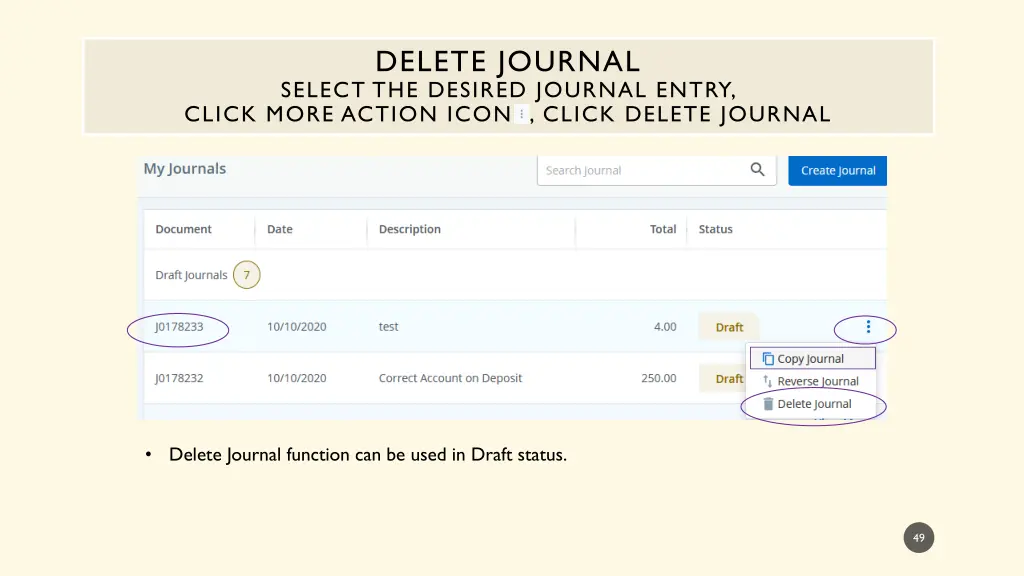
DELETE JOURNAL SELECT THE DESIRED JOURNAL ENTRY, CLICK MORE ACTION ICON , CLICK DELETE JOURNAL Finance Self Service Journal Entry Training Journal Entry Training Finance Self Service Delete Journal function can be used in Draft status. 49
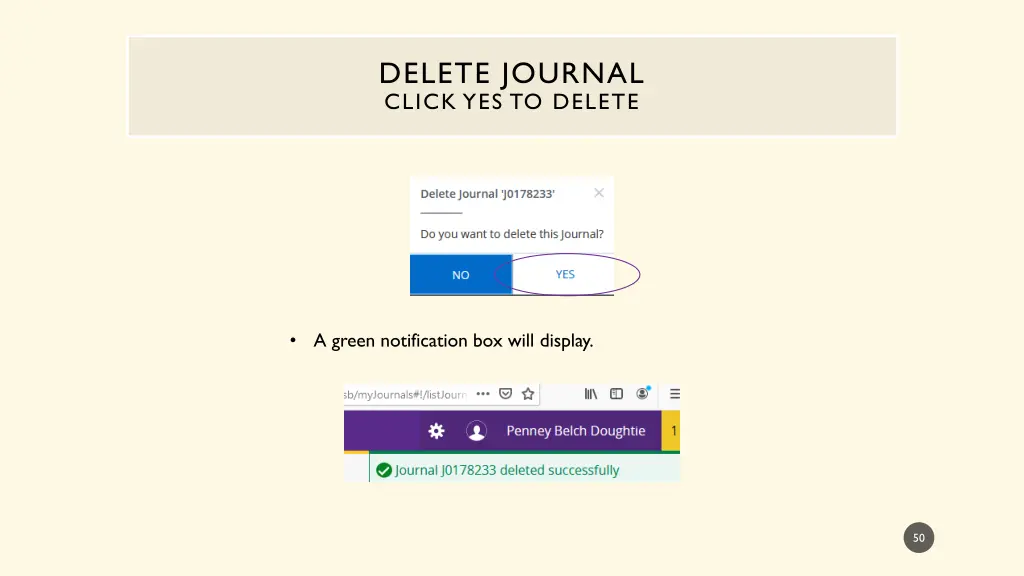
DELETE JOURNAL CLICK YES TO DELETE A green notification box will display. 50